

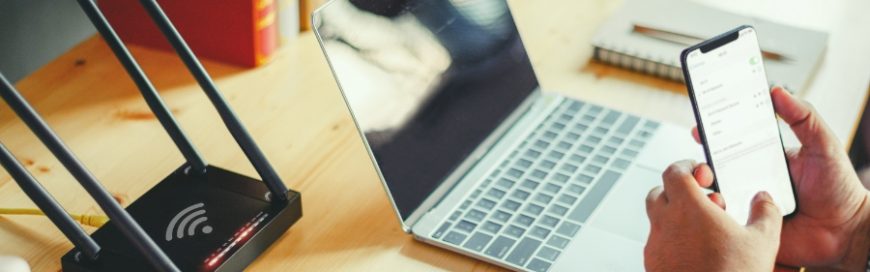
To facilitate communication and collaboration among remote workforce, fast and reliable home Wi-Fi connections are essential. If you are a remote worker and have exhausted all the home Wi-Fi boosting tips online, then perhaps it’s time to look into wireless repeaters and additional access points.
What are wireless repeaters?
A repeater is a device that takes an existing Wi-Fi signal and rebroadcasts it as a new network. This new network enables you to extend the limited reach that Wi-Fi routers have, reducing dead spots in your home, like floors far away from the router or areas behind thick walls or posts.
What are access points?
An access point device allows wireless devices to connect to a network. Most access points have built-in routers, but some need to be connected to a router. Access points are typically hardwired to network switches or modems.
How to get started
Start by conducting a survey of the Wi-Fi signal throughout your home so you can identify where you should install repeaters and access points to maximize your Wi-Fi connection. This involves:
- Determining the reach of your router by using a Wi-Fi analyzer app like Opensignal or NetSpot.
- Identifying spots that don’t receive a Wi-Fi signal in your house. You can usually solve this by relocating your router or modem to an area where the signal is better.
- Checking for obstructions that may be blocking your Wi-Fi connection like walls, furniture, plastics, or water, and sources of interference that hamper your signal strength, such as microwave ovens, baby monitors, or radios.
Based on your survey, determine the best locations for the repeater and access point. For example, if your router is in the dining room and you can’t get a good signal in your living room down the hall, put the access point outside the dining room and the repeater in the living room. The signal will be extended by the access point and amplified by the repeater to nearby devices. Note that wireless repeaters must be placed in areas where the signal is poor, not in dead spots.
How to set up wireless repeaters and access points
Most wireless repeater and access point brands and models have the same setup process.
Wireless repeater
To set up a wireless repeater, follow these steps:
- Choose an area that does not have obstructions that can block signals from your Wi-Fi router.
- Plug the repeater into a power outlet.
- You can opt to connect the repeater directly to a computer using an Ethernet cable or connect the computer to the repeater’s wireless network.
- On your computer, open a new browser window. Type your Wi-Fi network’s password in the address bar.
- Follow any other steps to setting up your wireless repeater included in the manufacturer’s instructions.
Access point
Follow these steps when setting up an access point:
- Select a location that is free of anything that can block signals from your Wi-Fi router.
- Turn off your router or modem and computer. Using an Ethernet cable, connect your access point to your router or modem and your computer.
- Turn on your router or modem, and plug the access point into a power outlet. Then, turn on your computer.
- Follow any other steps to setting up your access point included in the manufacturer’s instructions.
- Connect your router using the IP address provided in the manual, or either 192.168.0.1 or 192.168.1.1, to make changes to your router’s settings.
Need help setting up or getting the most out of your wireless network? Our IT experts are ready to help. Get in touch with us today.
A improve home Wi: South Florida Business Takeaways
A improve home Wi matters when a growing company depends on reliable devices, cloud tools, cybersecurity, and responsive support. Nextek IT helps South Florida businesses turn this topic into practical technology standards that employees can follow.
Security-related technology choices work best when they are documented, monitored, and reinforced by employee training. Nextek IT helps South Florida businesses reduce avoidable risk while keeping users productive.
- Document the recommended process so employees apply A improve home Wi consistently.
- Review settings across managed devices, Microsoft 365, cloud apps, and user accounts.
- Confirm backups, cybersecurity controls, and support escalation steps before a small issue becomes downtime.
For help with A improve home Wi, explore Nextek IT’s fully managed IT services, server and desktop support, and cybersecurity services.
Contact Nextek IT when your South Florida team wants these improvements handled by an IT support partner instead of manually page by page.